---
title: Enabling Required Fields in Work Orders | FlowPath Help Center
description: FlowPath Knowledge Hub
---
[Skip to content](https://helpcenter.getflowpath.com/enabling-required-fields-in-work-orders-flowpath-help-center#main-content)
[](https://www.getflowpath.com/)
Open main navigation
Close main navigation
How can we help you?
- There are no suggestions because the search field is empty.
1. [FlowPath Knowledge Hub](https://helpcenter.getflowpath.com/?hsLang=en-us)
2. [Work Orders](https://helpcenter.getflowpath.com/work-orders?hsLang=en-us)
3. [Work Order Preferences- Admin set up](https://helpcenter.getflowpath.com/work-orders?hsLang=en-us#work-order-preferences-admin-set-up)
# Enabling Required Fields in Work Orders | FlowPath Help Center
### Enabling Required Fields in Work Orders
How you can ensure the fields in the work orders are being submitted before completion of work orders.
June 2, 2025
1. **Open Global Work-Order Settings**
- As an admin, click the **Settings drawer → Global Settings → Work Orders**.
2. **Navigate to the “Required Fields” Section**
- Scroll down or use **Jump to → Required Fields** (the section is blank by default).
3. **Choose Which Data Fields Are Mandatory**
- Each potential field (e.g., **Labor Hours Logged, User Comment**) is shown in a table by **user role**:
*Location User, Collaborator, Operations, Admin*.
- Check a box to make that field required for the corresponding role; leave unchecked to keep it optional.
- No fields are required by default, you will need to check to update.
**Open Global Work-Order Settings**
As an admin, click the **Settings drawer → Global Settings → Work Orders**.
As an admin, click the **Settings drawer → Global Settings → Work Orders**.
**Navigate to the “Required Fields” Section**
Scroll down or use **Jump to → Required Fields** (the section is blank by default).
Scroll down or use **Jump to → Required Fields** (the section is blank by default).
**Choose Which Data Fields Are Mandatory**
Each potential field (e.g., **Labor Hours Logged, User Comment**) is shown in a table by **user role**:
*Location User, Collaborator, Operations, Admin*.
Each potential field (e.g., **Labor Hours Logged, User Comment**) is shown in a table by **user role**:
*Location User, Collaborator, Operations, Admin*.
Check a box to make that field required for the corresponding role; leave unchecked to keep it optional.
Check a box to make that field required for the corresponding role; leave unchecked to keep it optional.
No fields are required by default, you will need to check to update.
No fields are required by default, you will need to check to update.
[.png)](https://downloads.intercomcdn.com/i/o/vrjn9zxh/1552345538/8bfd3752f55bfd6e14ef320586b0/image+%281%29.png?expires=1784232000&signature=c5efac76c9346cfd19c871dcf4e27c1fc9b6a26b9834ac438881552f947c79d8&req=dSUiFMp6mIRcUfMW1HO4zfBG2QrROvmCN5MjwPbmrjYhDgHelf6iCcxiR22o%0AwVzStMJk19f2jBCi69M%3D%0A)
1. **Save/Exit (if applicable)**
- Your selections are stored instantly; exit the settings panel when finished.
2. **Technician Experience When Completing a Work Order**
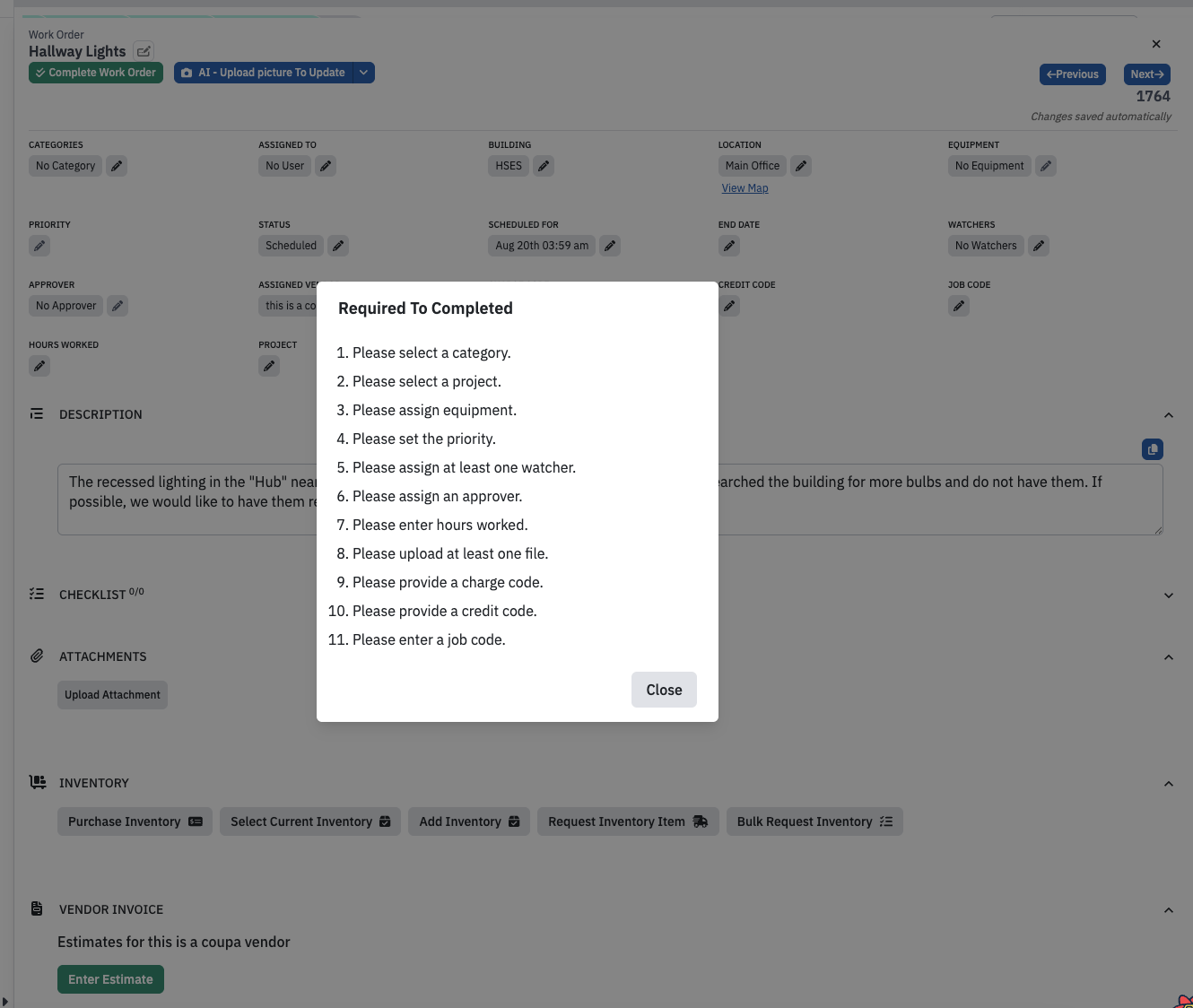
- If a technician tries to **Complete Work Order** without filling every required field, a pop-up lists the unmet requirements.
- Example shown in video: “Labor Hours must be logged.”
[](https://downloads.intercomcdn.com/i/o/vrjn9zxh/1552344533/801951cbdb1e84e7c985db39ce77/image.png?expires=1784232000&signature=7243776a1f7caa98dcf694ce2a19d2d28837f637317eab20f50bf9d7c69c03d2&req=dSUiFMp6mYRcWvMW1HO4zTm5aW%2FbvYmkUdKjxI4vzUFeczIJEXoMlvszjFuQ%0AjK3Z%0A)
3. **Satisfy the Requirement(s)**
- Open the missing section (e.g., **Labor Hours**), add the necessary data (e.g., 1 hour, today’s date), and submit.
4. **Complete the Work Order**
- With all required fields now filled, click **Complete Work Order** again—the work order closes successfully.
**Save/Exit (if applicable)**
Your selections are stored instantly; exit the settings panel when finished.
Your selections are stored instantly; exit the settings panel when finished.
**Technician Experience When Completing a Work Order**
If a technician tries to **Complete Work Order** without filling every required field, a pop-up lists the unmet requirements.
If a technician tries to **Complete Work Order** without filling every required field, a pop-up lists the unmet requirements.
Example shown in video: “Labor Hours must be logged.”
[](https://downloads.intercomcdn.com/i/o/vrjn9zxh/1552344533/801951cbdb1e84e7c985db39ce77/image.png?expires=1784232000&signature=7243776a1f7caa98dcf694ce2a19d2d28837f637317eab20f50bf9d7c69c03d2&req=dSUiFMp6mYRcWvMW1HO4zTm5aW%2FbvYmkUdKjxI4vzUFeczIJEXoMlvszjFuQ%0AjK3Z%0A)
Example shown in video: “Labor Hours must be logged.”
[](https://downloads.intercomcdn.com/i/o/vrjn9zxh/1552344533/801951cbdb1e84e7c985db39ce77/image.png?expires=1784232000&signature=7243776a1f7caa98dcf694ce2a19d2d28837f637317eab20f50bf9d7c69c03d2&req=dSUiFMp6mYRcWvMW1HO4zTm5aW%2FbvYmkUdKjxI4vzUFeczIJEXoMlvszjFuQ%0AjK3Z%0A)
**Satisfy the Requirement(s)**
Open the missing section (e.g., **Labor Hours**), add the necessary data (e.g., 1 hour, today’s date), and submit.
Open the missing section (e.g., **Labor Hours**), add the necessary data (e.g., 1 hour, today’s date), and submit.
**Complete the Work Order**
With all required fields now filled, click **Complete Work Order** again—the work order closes successfully.
With all required fields now filled, click **Complete Work Order** again—the work order closes successfully.
Our dragging and dropping currently does not check comments, files/attachments, labor hours, charge codes, credit codes, this will be V2 but for quick complete button or changing status within a work order it does catch all of the data field items.
-
-
-
-
-
- [FCA Module](https://helpcenter.getflowpath.com/fca-module?hsLang=en-us)
- [Projects](https://helpcenter.getflowpath.com/projects?hsLang=en-us)
- [All About AI Assistant](https://helpcenter.getflowpath.com/all-about-ai-assistant?hsLang=en-us#main-content)
- [Settings](https://helpcenter.getflowpath.com/all-about-ai-assistant?hsLang=en-us#settings)
- [How best to use FlowPath AI](https://helpcenter.getflowpath.com/all-about-ai-assistant?hsLang=en-us#how-best-to-use-flowpath-ai)
- [Inspections](https://helpcenter.getflowpath.com/all-about-ai-assistant?hsLang=en-us#inspections)
- [PM Schedules](https://helpcenter.getflowpath.com/all-about-ai-assistant?hsLang=en-us#pm-schedules)
- [Asset Reservations](https://helpcenter.getflowpath.com/all-about-ai-assistant?hsLang=en-us#asset-reservations)
- [Vendors](https://helpcenter.getflowpath.com/all-about-ai-assistant?hsLang=en-us#vendors)
- [Inventory](https://helpcenter.getflowpath.com/all-about-ai-assistant?hsLang=en-us#inventory)
- [Sub-Equipment](https://helpcenter.getflowpath.com/all-about-ai-assistant?hsLang=en-us#sub-equipment)
- [Work Orders](https://helpcenter.getflowpath.com/all-about-ai-assistant?hsLang=en-us#work-orders)
- [Equipment](https://helpcenter.getflowpath.com/all-about-ai-assistant?hsLang=en-us#equipment)
- [AI Agent Teams](https://helpcenter.getflowpath.com/all-about-ai-assistant?hsLang=en-us#ai-agent-teams)
- [Projects](https://helpcenter.getflowpath.com/all-about-ai-assistant?hsLang=en-us#projects)
- [Events](https://helpcenter.getflowpath.com/all-about-ai-assistant?hsLang=en-us#events)
- [Adjustments](https://helpcenter.getflowpath.com/all-about-ai-assistant?hsLang=en-us#adjustments)
- [Reporting](https://helpcenter.getflowpath.com/all-about-ai-assistant?hsLang=en-us#reporting)
- [Procurement](https://helpcenter.getflowpath.com/all-about-ai-assistant?hsLang=en-us#procurement)
- [Work Orders](https://helpcenter.getflowpath.com/work-orders?hsLang=en-us#main-content)
- [Getting started with Work Orders](https://helpcenter.getflowpath.com/work-orders?hsLang=en-us#getting-started-with-work-orders)
- [Work Order Categories](https://helpcenter.getflowpath.com/work-orders?hsLang=en-us#work-order-categories)
- [Work Order Preferences- Admin set up](https://helpcenter.getflowpath.com/work-orders?hsLang=en-us#work-order-preferences-admin-set-up)
- [Organizing your Work Order Dashboard](https://helpcenter.getflowpath.com/work-orders?hsLang=en-us#organizing-your-work-order-dashboard)
- [Submitting Work Order Requests](https://helpcenter.getflowpath.com/work-orders?hsLang=en-us#submitting-work-order-requests)
- [Events](https://helpcenter.getflowpath.com/events?hsLang=en-us)
- [Mapping and Layouts](https://helpcenter.getflowpath.com/mapping-and-layouts?hsLang=en-us)
- [Reporting & Dashboards](https://helpcenter.getflowpath.com/reporting-dashboards?hsLang=en-us)
- [QR Codes](https://helpcenter.getflowpath.com/qr-codes?hsLang=en-us#main-content)
- [Printing Your Asset QR Codes](https://helpcenter.getflowpath.com/qr-codes?hsLang=en-us#printing-your-asset-qr-codes)
- ["How To" Guides](https://helpcenter.getflowpath.com/how-to-guides?hsLang=en-us)
- [Sites and Locations](https://helpcenter.getflowpath.com/sites-and-locations?hsLang=en-us)
- [Onboarding](https://helpcenter.getflowpath.com/onboarding?hsLang=en-us)
- [General Setup](https://helpcenter.getflowpath.com/general-setup?hsLang=en-us)
- [Users](https://helpcenter.getflowpath.com/users?hsLang=en-us)
- [Equipment & Assets](https://helpcenter.getflowpath.com/equipment-assets?hsLang=en-us)
- [Best Practices](https://helpcenter.getflowpath.com/best-practices?hsLang=en-us)
- [Vendors](https://helpcenter.getflowpath.com/vendors?hsLang=en-us)
- [Preventative Maintenance](https://helpcenter.getflowpath.com/preventative-maintenance?hsLang=en-us#main-content)
- [Preventative Maintenance Schedules](https://helpcenter.getflowpath.com/preventative-maintenance?hsLang=en-us#preventative-maintenance-schedules)
- [Inspections](https://helpcenter.getflowpath.com/preventative-maintenance?hsLang=en-us#inspections)
- [Inventory](https://helpcenter.getflowpath.com/inventory?hsLang=en-us)
- [Asset Reservations](https://helpcenter.getflowpath.com/asset-reservations?hsLang=en-us)
- [GIS](https://helpcenter.getflowpath.com/gis?hsLang=en-us)
[](https://www.getflowpath.com)