---
title: Scanning QR Codes to Access Equipment Using a Mobile Device | FlowPath Help Center
description: FlowPath Knowledge Hub
---
[Skip to content](https://helpcenter.getflowpath.com/scanning-qr-codes-to-access-equipment-using-a-mobile-device-flowpath-help-center#main-content)
[](https://www.getflowpath.com/)
Open main navigation
Close main navigation
How can we help you?
- There are no suggestions because the search field is empty.
1. [FlowPath Knowledge Hub](https://helpcenter.getflowpath.com/?hsLang=en-us)
2. [QR Codes](https://helpcenter.getflowpath.com/qr-codes?hsLang=en-us)
# Scanning QR Codes to Access Equipment Using a Mobile Device | FlowPath Help Center
### Scanning QR Codes to Access Equipment Using a Mobile Device
Learn how to navigate FlowPath to scan equipment QR codes using a mobile device or tablet.
August 2, 2024
### How to Scan a QR code in FlowPath
1. **Accessing Equipment Module**
- Log into FlowPath on your device.
- Click into Equipment.
2. **Use your Camera**
- Click on the QR scan icon
[](https://downloads.intercomcdn.com/i/o/1133377245/3c8937a050bb698470e7fbc4/Screenshot+2024-08-02+at+4_43_14%E2%80%AFPM.png?expires=1784231100&signature=c0f51c11bfedf218c232187fe40d10f4e22809223d99cc4af7cc7bbe32565184&req=dSEkFcp5moNbXPMW1HO4zfabkaz3tn6Jp5UsXlcTXVs%2BluUhEssL2oa%2FsevL%0ADj2l%0A)
- Allow camera access on your device and scan the QR code.
3. **View the Equipment Details**
- Scroll to view and edit details related to the equipment.
- Search work orders and PM schedules.
- Delete or Archive if necessary
4. **Scan to Create a Work Order**
- Click down arrow then select Scan QR Code to Create
[](https://downloads.intercomcdn.com/i/o/1133382543/9f3b75fb36b02d329db173ec/Screenshot+2024-08-02+at+4_48_02%E2%80%AFPM.png?expires=1784231100&signature=ee42764a261081b9ec8f7557078724ad4497ce9604729ccecadf25afeea9ae11&req=dSEkFcp2n4RbWvMW1HO4zQENskqdUABwnEBUBNGgsWNbOP%2FLGRGzkazE5vFE%0AtSux%0A)
- Scan the equipment QR code with your camera.
- Select equipment to create a work order.
**Accessing Equipment Module**
Log into FlowPath on your device.
Log into FlowPath on your device.
Click into Equipment.
Click into Equipment.
**Use your Camera**
Click on the QR scan icon
[](https://downloads.intercomcdn.com/i/o/1133377245/3c8937a050bb698470e7fbc4/Screenshot+2024-08-02+at+4_43_14%E2%80%AFPM.png?expires=1784231100&signature=c0f51c11bfedf218c232187fe40d10f4e22809223d99cc4af7cc7bbe32565184&req=dSEkFcp5moNbXPMW1HO4zfabkaz3tn6Jp5UsXlcTXVs%2BluUhEssL2oa%2FsevL%0ADj2l%0A)
Click on the QR scan icon
[](https://downloads.intercomcdn.com/i/o/1133377245/3c8937a050bb698470e7fbc4/Screenshot+2024-08-02+at+4_43_14%E2%80%AFPM.png?expires=1784231100&signature=c0f51c11bfedf218c232187fe40d10f4e22809223d99cc4af7cc7bbe32565184&req=dSEkFcp5moNbXPMW1HO4zfabkaz3tn6Jp5UsXlcTXVs%2BluUhEssL2oa%2FsevL%0ADj2l%0A)
Allow camera access on your device and scan the QR code.
Allow camera access on your device and scan the QR code.
**View the Equipment Details**
Scroll to view and edit details related to the equipment.
Scroll to view and edit details related to the equipment.
Search work orders and PM schedules.
Search work orders and PM schedules.
Delete or Archive if necessary
Delete or Archive if necessary
**Scan to Create a Work Order**
Click down arrow then select Scan QR Code to Create
[](https://downloads.intercomcdn.com/i/o/1133382543/9f3b75fb36b02d329db173ec/Screenshot+2024-08-02+at+4_48_02%E2%80%AFPM.png?expires=1784231100&signature=ee42764a261081b9ec8f7557078724ad4497ce9604729ccecadf25afeea9ae11&req=dSEkFcp2n4RbWvMW1HO4zQENskqdUABwnEBUBNGgsWNbOP%2FLGRGzkazE5vFE%0AtSux%0A)
Click down arrow then select Scan QR Code to Create
[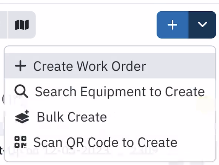](https://downloads.intercomcdn.com/i/o/1133382543/9f3b75fb36b02d329db173ec/Screenshot+2024-08-02+at+4_48_02%E2%80%AFPM.png?expires=1784231100&signature=ee42764a261081b9ec8f7557078724ad4497ce9604729ccecadf25afeea9ae11&req=dSEkFcp2n4RbWvMW1HO4zQENskqdUABwnEBUBNGgsWNbOP%2FLGRGzkazE5vFE%0AtSux%0A)
Scan the equipment QR code with your camera.
Scan the equipment QR code with your camera.
Select equipment to create a work order.
Select equipment to create a work order.
-
-
-
-
-
- [FCA Module](https://helpcenter.getflowpath.com/fca-module?hsLang=en-us)
- [Projects](https://helpcenter.getflowpath.com/projects?hsLang=en-us)
- [All About AI Assistant](https://helpcenter.getflowpath.com/all-about-ai-assistant?hsLang=en-us#main-content)
- [Settings](https://helpcenter.getflowpath.com/all-about-ai-assistant?hsLang=en-us#settings)
- [How best to use FlowPath AI](https://helpcenter.getflowpath.com/all-about-ai-assistant?hsLang=en-us#how-best-to-use-flowpath-ai)
- [Inspections](https://helpcenter.getflowpath.com/all-about-ai-assistant?hsLang=en-us#inspections)
- [PM Schedules](https://helpcenter.getflowpath.com/all-about-ai-assistant?hsLang=en-us#pm-schedules)
- [Asset Reservations](https://helpcenter.getflowpath.com/all-about-ai-assistant?hsLang=en-us#asset-reservations)
- [Vendors](https://helpcenter.getflowpath.com/all-about-ai-assistant?hsLang=en-us#vendors)
- [Inventory](https://helpcenter.getflowpath.com/all-about-ai-assistant?hsLang=en-us#inventory)
- [Sub-Equipment](https://helpcenter.getflowpath.com/all-about-ai-assistant?hsLang=en-us#sub-equipment)
- [Work Orders](https://helpcenter.getflowpath.com/all-about-ai-assistant?hsLang=en-us#work-orders)
- [Equipment](https://helpcenter.getflowpath.com/all-about-ai-assistant?hsLang=en-us#equipment)
- [AI Agent Teams](https://helpcenter.getflowpath.com/all-about-ai-assistant?hsLang=en-us#ai-agent-teams)
- [Projects](https://helpcenter.getflowpath.com/all-about-ai-assistant?hsLang=en-us#projects)
- [Events](https://helpcenter.getflowpath.com/all-about-ai-assistant?hsLang=en-us#events)
- [Adjustments](https://helpcenter.getflowpath.com/all-about-ai-assistant?hsLang=en-us#adjustments)
- [Reporting](https://helpcenter.getflowpath.com/all-about-ai-assistant?hsLang=en-us#reporting)
- [Procurement](https://helpcenter.getflowpath.com/all-about-ai-assistant?hsLang=en-us#procurement)
- [Work Orders](https://helpcenter.getflowpath.com/work-orders?hsLang=en-us#main-content)
- [Getting started with Work Orders](https://helpcenter.getflowpath.com/work-orders?hsLang=en-us#getting-started-with-work-orders)
- [Work Order Categories](https://helpcenter.getflowpath.com/work-orders?hsLang=en-us#work-order-categories)
- [Work Order Preferences- Admin set up](https://helpcenter.getflowpath.com/work-orders?hsLang=en-us#work-order-preferences-admin-set-up)
- [Organizing your Work Order Dashboard](https://helpcenter.getflowpath.com/work-orders?hsLang=en-us#organizing-your-work-order-dashboard)
- [Submitting Work Order Requests](https://helpcenter.getflowpath.com/work-orders?hsLang=en-us#submitting-work-order-requests)
- [Events](https://helpcenter.getflowpath.com/events?hsLang=en-us)
- [Mapping and Layouts](https://helpcenter.getflowpath.com/mapping-and-layouts?hsLang=en-us)
- [Reporting & Dashboards](https://helpcenter.getflowpath.com/reporting-dashboards?hsLang=en-us)
- [QR Codes](https://helpcenter.getflowpath.com/qr-codes?hsLang=en-us#main-content)
- [Printing Your Asset QR Codes](https://helpcenter.getflowpath.com/qr-codes?hsLang=en-us#printing-your-asset-qr-codes)
- ["How To" Guides](https://helpcenter.getflowpath.com/how-to-guides?hsLang=en-us)
- [Sites and Locations](https://helpcenter.getflowpath.com/sites-and-locations?hsLang=en-us)
- [Onboarding](https://helpcenter.getflowpath.com/onboarding?hsLang=en-us)
- [General Setup](https://helpcenter.getflowpath.com/general-setup?hsLang=en-us)
- [Users](https://helpcenter.getflowpath.com/users?hsLang=en-us)
- [Equipment & Assets](https://helpcenter.getflowpath.com/equipment-assets?hsLang=en-us)
- [Best Practices](https://helpcenter.getflowpath.com/best-practices?hsLang=en-us)
- [Vendors](https://helpcenter.getflowpath.com/vendors?hsLang=en-us)
- [Preventative Maintenance](https://helpcenter.getflowpath.com/preventative-maintenance?hsLang=en-us#main-content)
- [Preventative Maintenance Schedules](https://helpcenter.getflowpath.com/preventative-maintenance?hsLang=en-us#preventative-maintenance-schedules)
- [Inspections](https://helpcenter.getflowpath.com/preventative-maintenance?hsLang=en-us#inspections)
- [Inventory](https://helpcenter.getflowpath.com/inventory?hsLang=en-us)
- [Asset Reservations](https://helpcenter.getflowpath.com/asset-reservations?hsLang=en-us)
- [GIS](https://helpcenter.getflowpath.com/gis?hsLang=en-us)
[](https://www.getflowpath.com)